By Orias AI
AI Text-to-Video Generator: How to Turn Prompts Into Production-Ready Videos
AI text-to-video generators turn written shot briefs into short clips. See how prompting, references, take selection, editing, and review shape usable video.
An AI text-to-video generator turns a natural-language description into a sequence of video frames. Most current systems use diffusion-based or diffusion-transformer approaches: they progressively denoise a latent representation while using the text prompt to guide visual content and temporal relationships between frames. In production terms, the useful mental model is not “type a prompt, receive a finished commercial.” It is “write a shot brief, generate short takes, choose the footage that works, and finish it in post.”
How text-to-video models turn a prompt into moving frames
A prompt describes what should appear and happen—typically the subject, environment, action, and visual treatment. From there, the model moves from noise toward an interpretable sequence of frames, conditioning generation on the text. The process is described in a survey of video diffusion models as a combination of progressive denoising, visual modeling, and temporal modeling.
That description is a shot direction, not an animation blueprint. The model decides many visual details on its own, and video adds a second layer of difficulty: every frame must work by itself while the sequence preserves motion continuity, object identity, temporal consistency, and prompt alignment. A convincing opening frame does not guarantee that a product will keep its shape through a camera move or that a character will remain recognizably the same across the clip. Such failures remain central open problems in video-diffusion research.
Assess the result as footage. Play the full duration, checking transitions, moving hands and props, background motion, turns, entrances, exits, and interactions with other objects—not just the thumbnail or first second.
Prompting is therefore closer to writing a compact shot brief than to writing a slogan. Include the subject, action, setting, visual style, camera framing or movement, lighting, composition, and timing. Google’s guidance for Veo presents these categories as practical inputs for video generation.
Build a prompt as a shot brief
The most usable prompt is a compact shot brief rather than a slogan, mood word, or broad campaign idea. Specify the subject, its action, the setting, visual style, camera framing or movement, lighting, composition, and timing. This breaks a creative intention into directions a generator can act on more explicitly than a short abstract request. Google’s prompting guidance for Veo uses these same categories as practical inputs for video generation.
- Subject: who or what the shot follows.
- Action: the visible event, expressed as one clear beat where possible.
- Setting: place, time of day, surfaces, weather, or environmental context.
- Style and lighting: the intended visual treatment and illumination.
- Camera and composition: framing, perspective, movement, and where the subject sits in the frame.
- Timing: the order and pace of the action within the clip.
For example, a release teaser should not begin with “a premium skincare product in a beautiful studio.” Turn it into a shot instruction: “Close-up product shot of a glass skincare bottle on a pale stone surface; morning window light moves softly across the label; a small bead of condensation rolls down the bottle; restrained editorial beauty style; slow lateral camera move; bottle held in the right third of a vertical composition.” This does not guarantee the result, but it gives the model a subject, an event, a setting, and a camera intention to reconcile.
Then separate the next beat rather than packing a whole film into the same request: a hand enters frame, the cap is removed, or the product appears on a bathroom shelf. Short, independently generated shots make it easier to identify what failed and revise only that instruction. If the composition is wrong, change framing. If the environment is wrong, change setting details. If motion is the issue, simplify the action before adding decorative language.
Use reference images and settings to hold the visual direction
Text is often insufficient when the job depends on a specific character, object, scene, or established art direction. In those cases, image-guided generation can give the process an additional visual anchor. Current tools differ, but Google documents that Veo supports text-to-video and image-to-video workflows, along with reference images for scenes, characters, objects, and styles.
Use a reference image when approval depends on visual continuity rather than general resemblance: a campaign’s product silhouette, a recurring environment, a particular wardrobe direction, or the look of an existing editorial system. It is not a substitute for checking the output. A reference can establish a direction, while generated motion still needs to be watched for changes in form, identity, or layout.
Generation settings are part of the brief, not an afterthought. Where available, set the aspect ratio for the intended delivery surface, select an appropriate video length, and retain the seed when you need a reproducible starting point for controlled iteration. API-based generation can also fit a repeatable production system, such as a workflow that sends approved prompt fields and references into a generation queue. These controls do not eliminate variation; they help define what variation is acceptable.
Generate short takes, then assemble the video in post-production
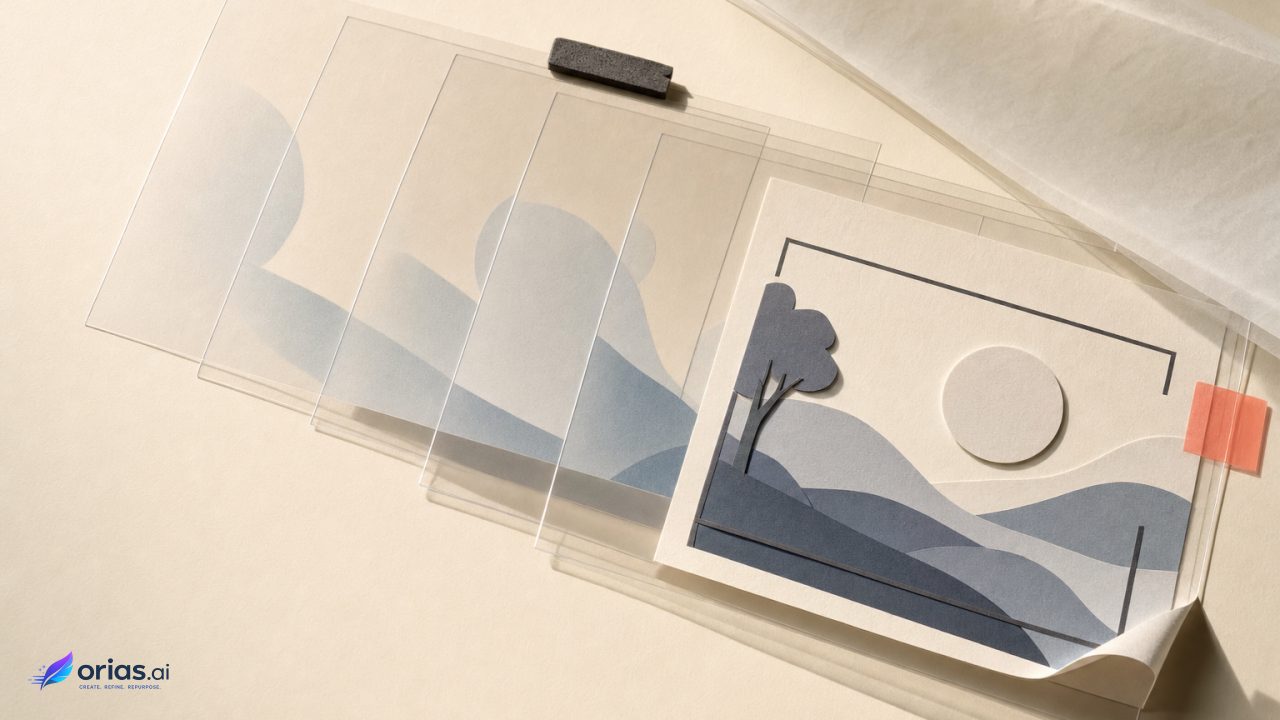
Treat each output as a take. Generate more than one version of a shot, compare them against the brief, and keep the clips that are visually stable and editorially useful. This is closer to a footage-selection process than a one-prompt delivery process. It also gives the team choices at the edit: a clean product moment may be more valuable than an ambitious camera move that introduces distracting artifacts.
A practical sequence might be: write a shot list; generate alternate takes for each shot; review full clips; label selects by what they can do in the edit; assemble the strongest clips; then complete the release version. Google’s video-generation documentation describes this broader workflow of generating variations, selecting usable takes, editing them together, and addressing narration, music, sound effects, captions, color, pacing, and branding in post-production.
The edit is where separate clips become a coherent piece. Match cuts to the story beat rather than forcing continuity that the footage cannot support. Add a voiceover only after the picture structure is credible. Use captions as designed editorial elements, not as a late rescue for unclear messaging. Brand assets, end cards, approved typography, color treatment, and sound should remain under the normal controls used for any published video.

What prevents a generated clip from being production-ready
Production-ready means more than attractive imagery. A generated clip must meet the brief, remain coherent over time, fit the final edit, and pass normal review. Common limitations include inconsistent motion, weak long-range coherence, imperfect prompt adherence, visual artifacts, high computational cost, and unreliable speech or audio synchronization. The demands increase when a clip must preserve motion, object identity, temporal consistency, and prompt alignment across multiple frames, particularly with several moving subjects, interactions, elaborate transformations, or longer continuous actions.
Speech and synchronized audio need a separate approval gate. Google identifies natural, consistent spoken audio and audio synchronization as active development areas for Veo. For deliverables requiring exact dialogue, pronunciation, timing, or legal copy, evaluate generated audio rather than assuming it is final. The production process can supply or correct narration, music, sound effects, captions, and branding.
Review visual acceptability separately from delivery readiness. Check whether the subject stays recognizable, the intended action occurs, focal areas are free of artifacts, and the clip enters and exits cleanly for the edit. Check onscreen text, speech, and product details for correction. A “yes” to visual appeal does not satisfy a requirement the audience will notice or a client has approved.
Review generated footage for rights, safety, and disclosure risks
Before publication, review generated video for safety, privacy, copyright, bias, and misleading content. That review belongs alongside the visual and editorial pass, not after the release file has been exported. Check the prompt, reference assets, visible likenesses, claims made by the edit, and the context in which the audience will encounter the work. A clip that is technically usable can still be unsuitable for publication.
Watermarking can support traceability, but it is not a complete solution for determining whether video is AI-generated or for resolving every publication question. Google says its Veo output uses SynthID watermarking and explicitly notes that watermarking is not a complete detection solution. Keep the generation record, source references, selected take, edits, and approval decisions with the project so that the team can explain how a published asset was made and reviewed.
Frequently Asked Questions
How long should a text-to-video prompt be?
Use enough detail to describe one shot clearly, not enough to bury several scenes in one instruction. Subject, action, setting, visual treatment, camera, lighting, composition, and timing are more useful than abstract adjectives alone.
Should a team use text-only or image-guided generation?
Text-only generation is suitable when the team is exploring an idea or can accept a broad interpretation. Use image guidance or references when a particular scene, character, object, or style needs closer continuity; then inspect the generated motion rather than assuming the reference has solved it.
Can short generated clips make a longer video?
Yes. Generate clips as individual shot options, choose the usable takes, and assemble them in an editor. The finished structure, transitions, pacing, sound, captions, and branding are post-production responsibilities.
Is generated dialogue or audio ready to publish?
Not without a dedicated check. Spoken audio and synchronization can be unreliable, so any work with exact spoken copy, timing, or pronunciation should be reviewed to the same standard as the picture.
What should be reviewed before publishing AI-generated video?
Review visual quality and prompt fit, then check safety, privacy, copyright, bias, and misleading implications. Preserve the relevant prompt, references, selected outputs, edits, and approvals; watermarking may help identify generated material but does not replace that review.