By Orias AI
AI YouTube Banner Generator: How to Create Channel Art That Fits Every Screen
YouTube channel banners use one source image across TV, desktop and mobile. Build AI-assisted art around a protected safe area for readable branding.
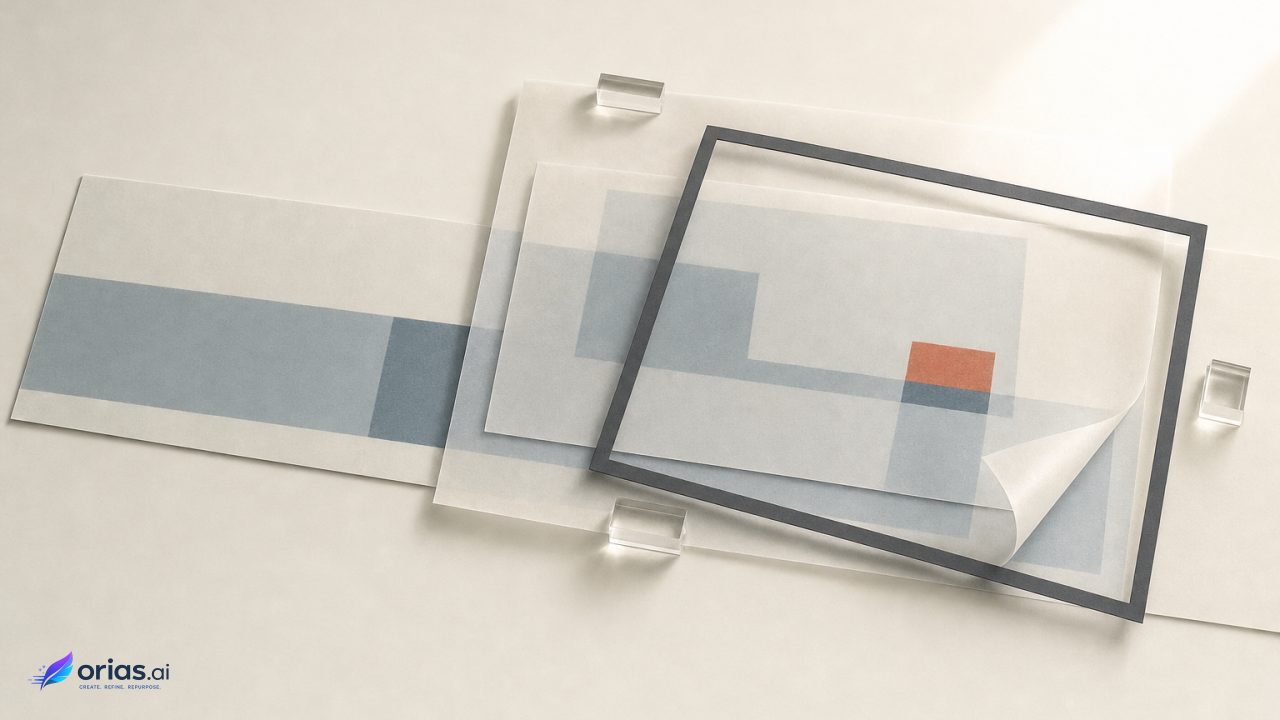
An AI YouTube banner generator is most useful as a way to create the visual artwork behind a channel’s identity—not as a one-click replacement for layout and brand production. YouTube uses one banner image across computer, mobile, and TV, with a different visible crop on each device. The workable approach is to create one flexible 16:9 master, place non-negotiable branding in the protected centre, and let generated artwork occupy the surrounding space. YouTube’s channel-branding guidance identifies the safe area as the place for content that must remain visible.
One banner source image, multiple device crops
Build one flexible banner master, not separate desktop, mobile, and television campaign assets. YouTube’s API describes the banner as a source image from which the platform generates different banner sizes for channel displays; the channels resource documentation supports that model. As device crops change, keep the channel identity and all essential information in the central, platform-safe region.
Let the surrounding image carry atmosphere, scenery, texture, colour, and secondary objects. Do not place the only channel name, logo, schedule, or call to action there, and do not rely on an extreme-edge face, product, or detail to explain the channel. When judging AI output, favour usable negative space and an extendable background: panoramic scenes with room around the focal point are more adaptable than tightly framed portraits, boundary-pressed objects, or images whose only meaningful detail lies outside the central region.
Set the canvas and protect the safe area
Build the banner at YouTube’s recommended 2560 × 1440 pixel size and 16:9 aspect ratio; the minimum is 2048 × 1152 pixels, according to YouTube’s published requirements.
Keep the channel name, logo, tagline, and other required marks in the safe area. At the minimum banner size, YouTube defines that area as 1235 × 338 pixels for text and logos, while material outside it may be cropped on some devices. On the larger master, scale the guide proportionally rather than reusing those minimum-size pixel values.
- Use the 2560 × 1440 master as the working canvas.
- Place a scaled version of YouTube’s safe-area guide at its centre.
- Keep editable text, logos, and essential marks inside that guide.
- Use the remaining canvas for artwork that can tolerate cropping.
Use AI for expandable background artwork
Give the image generator a narrowly defined role: produce scenery, a texture system, a mood, a subject, or a visual world that supports the channel. The final channel identity should remain a separate, editable layer in a design editor. This division of labour preserves control over spelling, hierarchy, placement, and later updates.
Prompt for composition as well as subject matter. A production brief can ask for a wide 16:9 scene, an uncluttered central area for a logo and channel name, and supporting visual interest toward the sides. It can also specify the desired lighting, palette, materials, or genre. The point is not that an AI system will always interpret those directions perfectly; it is to create selection criteria that match the banner’s layout constraints.
Do not rely on generated lettering for a channel name or tagline. Research on visual-text rendering notes that image-generation models have historically struggled to produce well-formed text reliably. Add the actual words in an editor after selecting the artwork, or correct them there if a generated image contains visual text. Google Research’s work on character-aware models is a useful reminder that visual text remains a distinct quality-control concern.
That separation also keeps the banner maintainable. A team can swap a seasonal background, reposition a subject, or revise a palette without rebuilding the wordmark. Conversely, a rebrand can update type and logo while retaining approved artwork. Keep the background, logo, text, safe-area guide, and export version as distinct layers or components until the final export.
A practical banner build
Consider a channel that publishes calm, process-led creative tutorials. Its visual direction is a softly lit studio environment with tactile materials, restrained colour, and enough open space for a name and logo. Rather than ask an AI tool to make a finished banner with text, the team asks for wide background candidates that leave the centre visually quiet and place tools, shelves, or material detail toward the sides.
- Open a 2560 × 1440 document and add a centred, scaled safe-area guide.
- Generate several wide background candidates from the visual brief. Reject options whose primary subject blocks the central branding zone or whose important details are limited to the outer edges.
- Choose the strongest usable candidate, then crop, extend, retouch, or reposition it in the design editor as needed to support the master canvas.
- Add the real channel name and logo as editable elements inside the safe area. Establish contrast against the background before treating the design as complete.
- Hide the guide, inspect the full master and the central protected region, then export a review file and a final upload file.
The decision sequence matters. If text goes on first and imagery is generated around it later, the team may be forced to accept clutter or weak contrast. If imagery is approved before the safe area is considered, the focal point may compete with the identity. Building the master around the guide makes these trade-offs visible early, when replacing a candidate is less expensive than repairing an almost-finished banner.
For review, ask two different questions. First, does the central region clearly identify the channel without relying on the artwork at the edges? Second, does the full-width image still feel intentional when more of the background is visible? A banner can pass the first test while feeling sparse on a wide display, or pass the second while losing its identity on a narrower crop.
Review AI output before upload
Do not treat a high-resolution render as a finished production asset. Text-to-image systems can still produce artifacts, implausible details, mismatches with the prompt, and weak aesthetics, so banner work needs a human review and correction stage. Google Research’s discussion of human feedback for text-to-image generation identifies these as continuing quality issues.
Review at the scale and crop where the asset will be used, not only in a generator gallery. Look closely at the focal subject, repeated patterns, edge transitions, and any signs, labels, interfaces, or lettering that slipped into the image. Then inspect the composition under the safe-area guide. A background can be visually attractive and still fail because it crowds the logo, makes the type difficult to read, or directs attention away from the central identity.
When the problem is local, manual correction may preserve an otherwise strong image. When the basic framing is wrong, regenerate or choose another candidate rather than trying to rescue it with excessive overlays. The reviewer’s job is not to prove that AI made the image; it is to decide whether the image can function as dependable channel art after the platform applies its device-specific displays.
Export a compliant master file
Export the completed master as one banner file, with the guide removed and the final branding visible. YouTube requires uploaded channel banners to be 6 MB or smaller. Its Data API documentation lists JPEG and PNG among accepted image MIME types. The channelBanners.insert reference is the relevant technical source for those upload details.
File format is an export decision, not a substitute for layout review. Before upload, confirm the final pixel dimensions, check the file size, and reopen the exported file to ensure that the logo and text remain crisp and correctly positioned. Keep the layered working document separately from the flattened upload asset; the source image may need revision when channel branding changes or a review reveals an issue.
The useful standard is simple: one 16:9 source image should retain its essential identity in YouTube’s protected centre while its generated artwork continues beyond that area without becoming structurally necessary. That is the constraint an AI YouTube banner generator cannot solve by itself, and the reason the final layout review belongs with the team publishing the channel.
Frequently Asked Questions
Where should a channel name and logo go?
Put both inside YouTube’s central safe area. At the minimum banner size, YouTube identifies that area as 1235 × 338 pixels for text and logos; material beyond it may be cropped on some devices.
Can AI generate the text on my YouTube banner?
It can be part of an image concept, but it is safer to add the final channel name, tagline, and calls to action in a design editor. Editable type gives the team control over spelling, legibility, and safe-area placement.
What size should an AI YouTube banner be?
Build the source file at YouTube’s recommended 2560 × 1440 pixels in a 16:9 ratio. The platform’s stated minimum upload size is 2048 × 1152 pixels.
Do I need separate banners for mobile and TV?
No. YouTube derives display variants from one source image. Design the single master so critical content remains in the safe area and the surrounding artwork can withstand changing crops.
Which file types and file size work for channel banners?
The upload must be 6 MB or smaller. YouTube’s API documentation lists JPEG and PNG among the accepted image MIME types; check the finished export rather than assuming the working file meets the limit.