By Orias AI
AI Video Stabilizer: How to Fix Shaky Footage for YouTube and Ads
AI video stabilizers smooth handheld footage by tracking camera motion. Set the right correction, preserve framing, and avoid warped ads and YouTube clips.
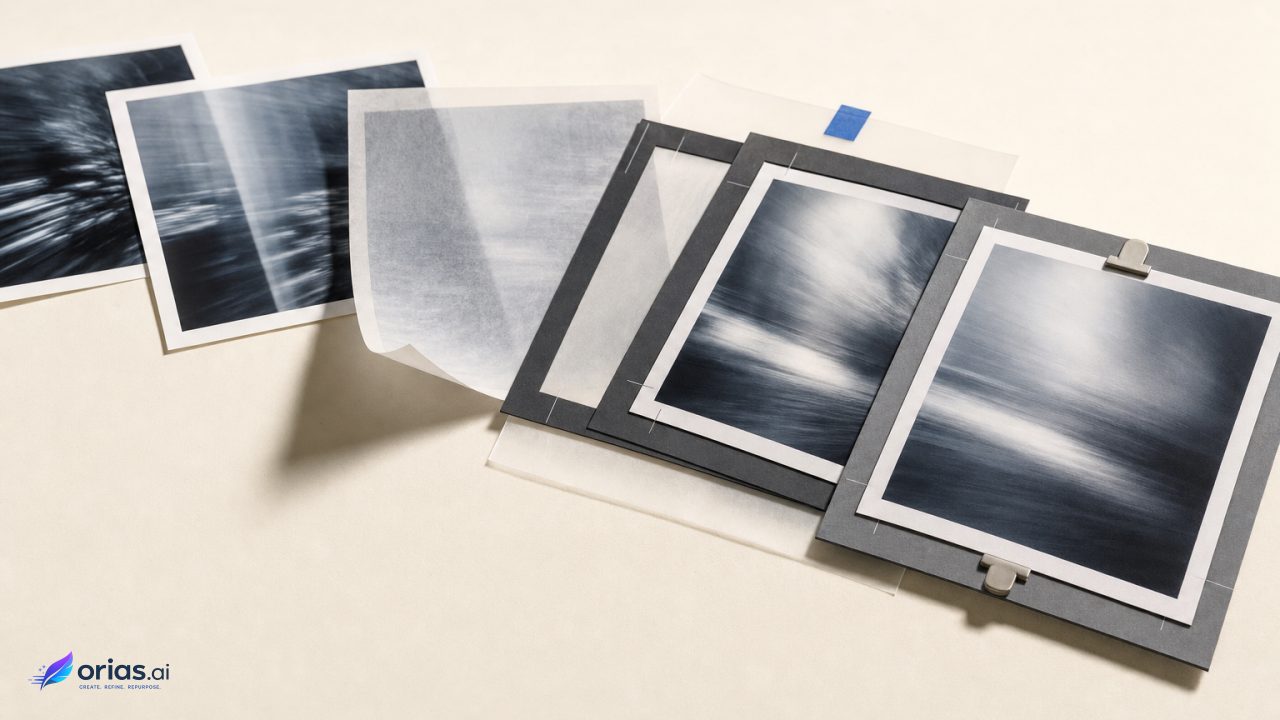
An AI video stabilizer compares movement from one frame to the next, estimates camera motion, and applies corrective transformations so handheld footage appears steadier. It commonly derives that motion from image features or keypoints and optical flow. OpenCV’s stabilization documentation describes global-motion estimation using keypoints and optical flow, while a research preprint on GlobalFlowNet frames stabilization as global-motion estimation constrained by optical flow. Research implementations may also add smoothing, parallax handling, or learned motion estimates.
The editorial aim is not necessarily to make a shot perfectly still. Stabilization can reduce unwanted jitter while retaining deliberate movement such as a walk, pan, or tracking shot. It is a post-production correction that can affect composition, borders, and the geometry of objects in frame, so choose the intended movement first and apply the least aggressive correction that makes the clip usable in its final layout.
What an AI Video Stabilizer Actually Corrects
The software is correcting apparent camera movement, not repairing every kind of bad shot. It compares successive frames, builds an estimate of motion over time, and repositions or transforms frames to produce a smoother path. A small hand tremor, uneven footsteps, or a hesitant pan can therefore become less distracting even though the subject and scene have not changed.
That distinction matters when reviewing a result. A stabilizer cannot restore a composition that never included the product, recreate detail that was not recorded, or guarantee natural geometry when the correction must be extreme. It also does not decide whether motion is narratively useful. In Adobe Premiere Pro’s Warp Stabilizer, Smooth Motion reduces jitter while preserving the original camera move; No Motion attempts to remove camera movement entirely. Adobe documents both goals and their settings.
Treat the analyzed movement as a proposed correction, not a substitute for a creative brief. Before applying an effect across a batch, identify the shot’s job: hold attention on a speaker, reveal a product, carry a viewer through a space, or provide a quiet background for copy. That decision determines how much residual movement is acceptable.
Choose the Motion Goal
Use a smooth-motion goal when the camera movement is intentional but the capture is rough. A handheld walk-and-talk, a lateral pass across a product display, or a controlled push toward packaging often needs some travel left in the frame. Removing all movement can make these shots feel unnaturally pinned down, particularly when surrounding cuts retain visible camera motion.
Use a no-motion goal when the intended image is effectively locked off: a talking head framed for a YouTube segment, a tabletop product detail, or a static end-card plate before graphics are added. The test is simple: if the shot would have been better on a tripod, remove camera drift; if it was designed as a move, preserve the direction and pace of that move while reducing accidental shake.
Review the clip in context rather than judging only the stabilized preview. A result can look steady in isolation yet create an abrupt visual change beside unstabilized B-roll. For an ad cut, also check whether the remaining motion pulls the product away from a logo, price, or legal copy area. The desired correction is the one that supports the edit, not the maximum setting the software can calculate.
The Crop-versus-Stability Trade-Off
Once a frame is shifted or rotated to counter camera movement, empty edges can appear. Digital stabilizers must decide what to do with those exposed borders. Premiere offers options to stabilize without reframing, crop, crop and automatically scale, or synthesize missing edge content from nearby frames. Its documented border controls make the core compromise visible: more smoothing will generally require more crop or scaling.
Cropping is often the cleanest answer, but it spends compositional room. Scaling keeps the delivered frame filled but can move a product closer to the edge, remove headroom, or undermine space reserved for supers. Synthesizing edges can avoid a crop in some material, yet it should be inspected frame by frame at the start and end of the shot and around complex background detail. A filled border is not automatically an invisible border.
Protecting a product shot
Consider a brief handheld shot of a bottle on a counter intended for both a vertical ad and a YouTube cut. Duplicate or preserve the original clip, mark the intended product position and copy-safe area in each deliverable, and apply a modest smooth-motion correction. Then inspect the full shot for crop changes—not just the sharpest frame. If automatic scaling pushes the bottle into the text zone, reduce smoothness before trying a more complex method.
Next, assess the clip in the actual aspect-ratio versions. A correction that keeps the bottle well placed in a wider edit may remove too much room after a vertical crop. If there is no stable compromise, use a shorter portion of the shot, change the edit point, reserve it for the format where it works, or select a different take. Adobe exposes a Crop Less–Smooth More control precisely because framing preservation and steadiness cannot always be maximized together.
Match the Method to the Motion Problem
Warp Stabilizer offers a progression from position correction through position, scale, and rotation; Perspective; and Subspace Warp. Adobe cautions that more complex methods can introduce warping or keystone-like artifacts.
Use the least complex option that resolves the visible motion. This matters most when the image includes straight architectural lines, packaging, faces, or other graphics. A correction that reduces shake can still fail if it makes a label bend or a wall flex.
For the decision, render short sections and view them at normal size. Inspect the points where the subject crosses the frame and where the camera changes direction; those moments can reveal geometry problems, reframing, or motion that conflicts with adjacent footage. The method's presumed sophistication is less useful than what appears in those checks.
When Stabilization Creates Wobble Instead
Rolling-shutter distortion can become more visible during stabilization as rippling or wobbling. Adobe Premiere Pro includes Rolling Shutter Ripple reduction, including an enhanced setting for larger artifacts, but it is a mitigation rather than a guarantee that every distorted source will become clean. Adobe identifies rolling-shutter ripple as a stabilization issue.
More complex stabilization methods can introduce unwanted warping or keystone-like distortion, so try a simpler method when straight edges ripple, faces change shape, or product geometry bends. Stabilization may also require cropping or scaling; if the usable crop is too severe or artifacts remain in the final framing, choose a different source clip or a reshoot rather than treating the compromised image as a hero visual. Adobe documents the trade-offs of stabilization methods and framing.
A Reliable Edit-to-Export Workflow
Stabilize against the sequence you intend to deliver. Adobe recommends applying Warp Stabilizer when footage dimensions match the sequence settings; when they do not, the clip can be nested before stabilization. That workflow guidance helps avoid making a correction against one frame geometry and then changing the framing later.
- Set the delivery sequence or make a nested version that matches it.
- Decide whether the clip needs smooth motion or no motion, and protect the planned crop and graphics space.
- Analyze the clip, then inspect the entire result at normal speed and at pauses where edges, faces, products, or straight lines are most revealing.
- Reduce correction or simplify the method if crop, scale, ripple, or warping becomes noticeable.
- Check the stabilized shot back in the edit before final export.
DaVinci Resolve is a practical alternative for teams not using Premiere Pro: its editor workflow includes stabilization controls that analyze a clip and attempt to stabilize the shot. Blackmagic Design’s Resolve 20 Editors Guide documents those controls. The editorial checks remain the same regardless of application: motion intent, crop, geometry, and the final frame.
For YouTube delivery, export progressive video, retain the recorded frame rate, and use a supported container and codec such as MP4 with H.264 video, following YouTube’s recommended upload settings. Stabilization is not a reason to alter the recorded frame rate. For ad masters, apply the same principle while checking the actual platform specification and the approved creative layout before delivery.
Frequently Asked Questions
Is AI stabilization the same as making a shot static?
No. A stabilizer can preserve an intentional camera move while reducing jitter, or it can attempt to remove movement. Choose based on whether the original shot was meant to travel or hold still.
Why does stabilized video look zoomed in?
Correcting movement can expose blank frame edges. Cropping and automatic scaling fill those edges, which makes the image appear more tightly framed.
What causes warping after stabilization?
Complex correction methods can distort the image while trying to compensate for difficult motion. Rolling-shutter artifacts can also become visible as ripple or wobble. Reducing correction or using a simpler method is often the first remedy.
Should I stabilize before cropping for an ad?
Work against the intended delivery frame whenever possible. Assess stabilization and the ad crop together, because the correction may consume space needed for copy, branding, or the product.
Does stabilization change YouTube export settings?
It should not change the basic recommendation to export progressively at the recorded frame rate. YouTube lists MP4 with H.264 video among its supported recommended delivery choices.