By Orias AI
AI Photo Restoration: How to Restore Old, Blurry and Damaged Photos
AI photo restoration estimates a cleaner image from blur, noise and damage. Use selective passes, face checks and source comparisons to preserve fidelity.
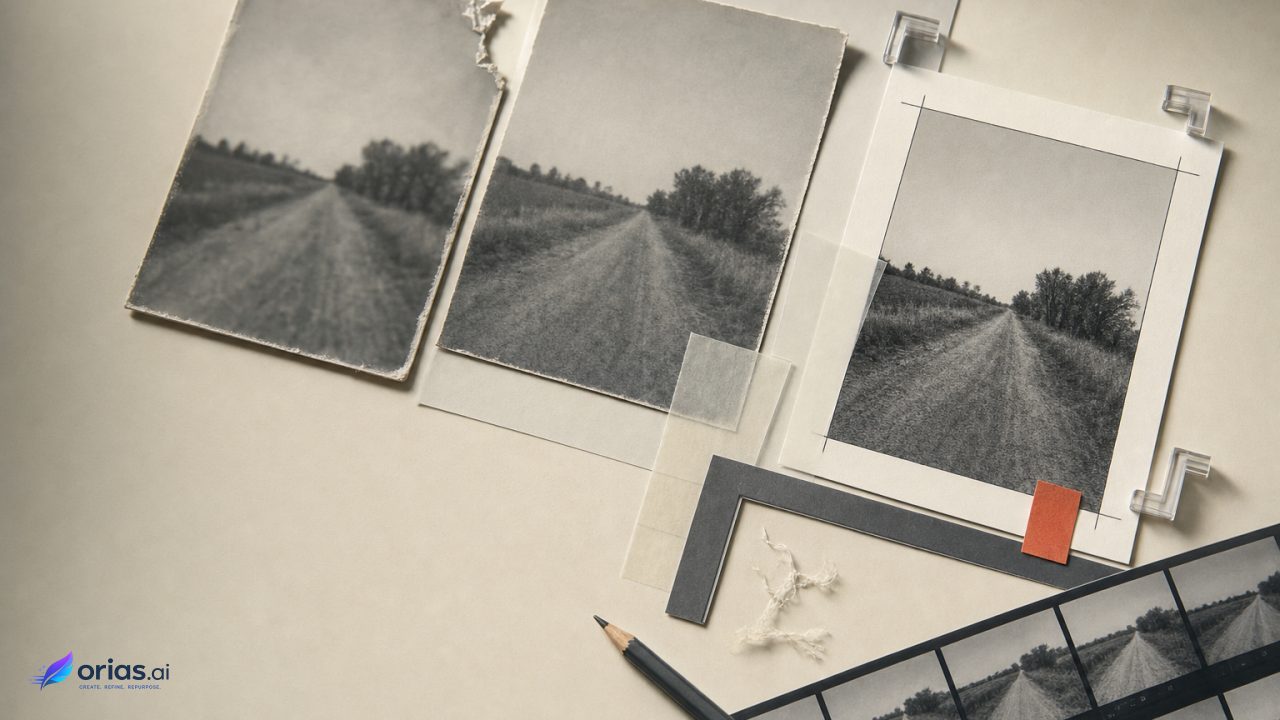
AI photo restoration uses a model to estimate a cleaner, higher-quality version of a degraded image. It can address blur, noise, low resolution, compression artifacts, and some mixed damage, but it does not retrieve pixels that no longer exist. The output is a reconstruction selected from plausible visual possibilities, which makes source retention and comparison central to any serious restoration workflow.
AI restoration estimates a cleaner image; it does not retrieve lost pixels
Image restoration starts with a degraded input and estimates a better image from it. In research systems such as SwinIR, feature extraction and reconstruction are applied to tasks including super-resolution, denoising, and JPEG artifact reduction. Those are distinct image problems, even when they appear together in one scan or export.
The critical constraint is that restoration is inherently ill-posed: the same blurry patch can be consistent with more than one original scene detail. Models therefore use learned priors or regularization to choose a likely reconstruction rather than establish guaranteed historical truth. A crisp result may be useful for a campaign layout, family archive copy, or editorial reproduction, but crispness alone is not evidence that every new edge, texture, or feature was present in the source.
That distinction changes the review standard. For an image being used as historical, journalistic, legal, or identity-sensitive material, ask whether the restoration preserved what can be supported by the source—not simply whether it looks more polished. Keep the unedited scan or file available beside every candidate output.
Match the defect to the restoration pass
Start by naming the visible defect before selecting a filter or model. Noise is random-looking variation that obscures tone and fine detail. JPEG artifacts often appear as blockiness, ringing, or broken edges after heavy compression. Low resolution limits the number of available pixels. Blur reduces separation between edges and can make detail ambiguous. An old photograph may also combine several of these problems.
A blanket “enhance” operation can make diagnosis harder. If a compressed web copy is enlarged before artifacts are addressed, the enlargement may emphasize the compression pattern. If aggressive denoising is applied to a grainy scan, it can flatten weak texture that matters to the photograph. Use the lightest pass that addresses the identified problem, then inspect at both working size and the intended delivery size.
- Noise or rough texture: test a denoising pass and check whether edges, hair, lettering, and fabric have become unnaturally smooth.
- JPEG damage: use artifact reduction before judging whether more detail can safely be created.
- Small dimensions: enlarge only to the dimensions the layout or output requires; enlargement estimates pixels rather than revealing hidden ones.
- Blur: treat any apparent recovery of fine features cautiously, because the input may not constrain one unique answer.
Adobe’s Neural Filters provide a familiar example of this task separation: its gallery includes JPEG Artifacts Removal and Super Zoom alongside other restoration-oriented filters. Separate controls do not guarantee a correct result, but they encourage a better operational question: which defect is this pass intended to correct?
Blind restoration handles mixed, unknown damage
Many inherited photographs and production assets arrive without a useful damage history. A team may not know whether softness came from camera motion, an earlier enlargement, repeated scanning, compression, or a combination of all four. This is the setting for blind restoration: a system attempts to work with unknown real-world degradation instead of assuming one precisely defined defect.
Real-ESRGAN is designed as a practical blind image-restoration approach. Its training uses synthetically generated degradations intended to approximate real images. In practice, that means it can be a sensible candidate for a difficult mixed-damage file, not a reason to skip inspection or assume the model has identified the real cause of every flaw.
For creative teams, treat blind restoration as a candidate-generation step. Run more than one restrained version when the image is important, label the settings or model used, and compare crops from the areas that matter most: faces, signage, product marks, hands, and fine high-contrast boundaries. The version that looks globally sharpest may be the least credible in a consequential local area.
Use face restoration as a fidelity-sensitive decision
Faces deserve a separate decision because face-restoration systems use facial priors to generate realistic eyes, skin, and other features. This can make a small or damaged portrait appear substantially more legible. It also raises the chance that plausible-looking detail changes a person’s identity when the original facial information is severely degraded.
The researchers behind GFP-GAN frame this as a balance between visual realism and fidelity to the input, and note that severe degradation can produce artifacts or identity changes. CodeFormer similarly presents a controllable trade-off between perceptual quality and fidelity. A more convincing face is not automatically a more faithful face.
Review facial restoration at 100% or another consistent close-view scale, with the original open beside it. Check the shape and placement of eyes, mouth, jawline, hairline, glasses, and distinctive marks. If a repair introduces a specific-looking feature that cannot be supported by the source, reduce the strength, choose a fidelity-oriented setting where available, mask the face out of a broader pass, or leave the area unresolved. This is particularly important when the person is named, historically significant, or central to an editorial claim.
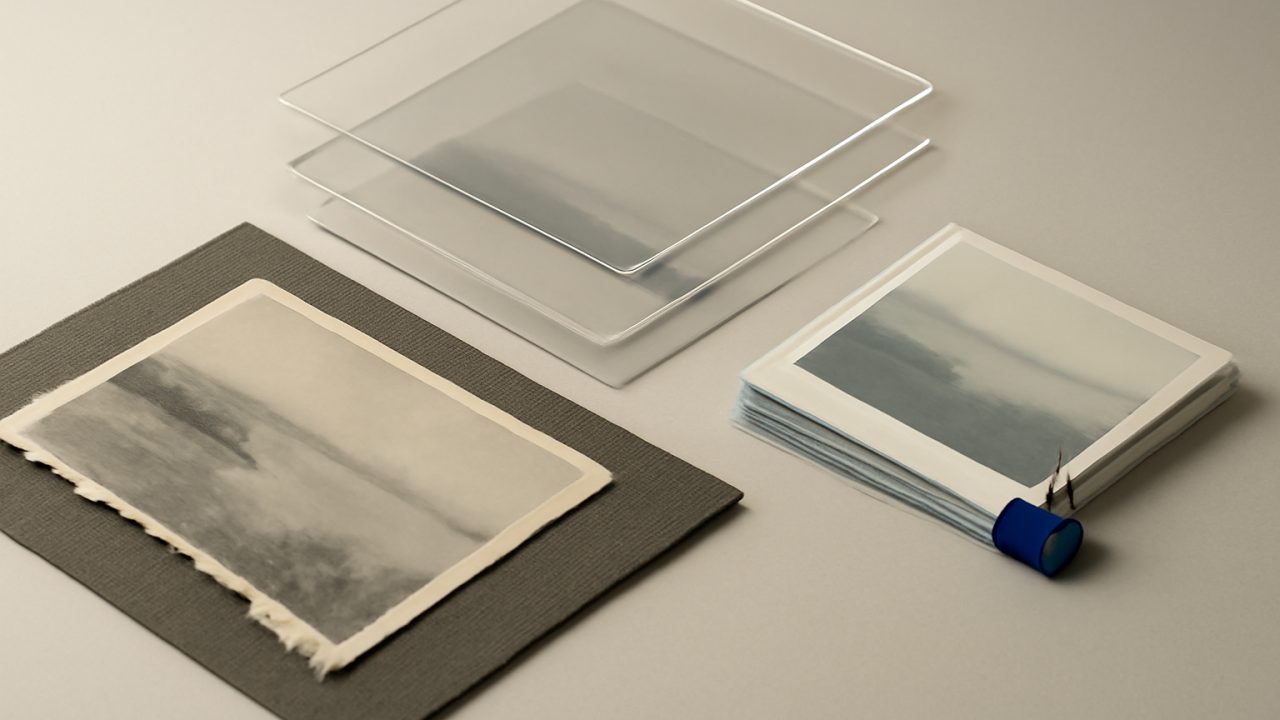
A practical restoration sequence
Consider a small JPEG of a scanned family photograph needed for a printed programme. It is blocky, somewhat soft, and contains two small faces. The production objective is a usable reproduction at the programme’s required dimensions, not an invented high-definition record of the people pictured.
- Duplicate and preserve the source. Store the original file unchanged and create a working copy. Record the file name and intended output dimensions so reviewers know which version is being assessed.
- Inspect and prioritize. Identify JPEG artifacts, noise, blur, small dimensions, and any local damage. Decide which regions are consequential to the use case.
- Repair global defects first. Test artifact removal or denoising on the full image or a duplicate. Avoid judging the result solely from the preview; compare the changed file with the original at matching magnification.
- Enlarge only as needed. Apply enlargement after the initial cleanup if the delivery size requires it. Examine lettering and edges, which can reveal overprocessed output quickly.
- Handle faces locally. Make face restoration an optional separate pass. Compare alternatives against the untreated face crop and reject versions that look realistic but depart from supported structure.
- Export with provenance. Keep the source, the approved output, and—where the work matters—the intermediate or settings record. Do not overwrite the source with a reconstructed version.
This sequence separates cleanup from reconstruction-sensitive work. It also creates an efficient handoff: the retoucher can state what was changed, while the editor, archivist, or campaign lead can decide whether the visual gain is acceptable for the image’s context.
Photoshop Neural Filters bundle restoration tasks, but Photo Restoration remains beta
Photoshop’s Neural Filters are a practical interface example rather than a single restoration method. Adobe lists Photo Restoration for old or damaged photographs, Colorize for black-and-white images, Super Zoom for enlargement, and JPEG Artifacts Removal for compression damage. Each addresses a different production task, so a team should avoid treating them as interchangeable stages.
Adobe classifies Photo Restoration as a beta filter and says results may vary by image and software version. Build review time into the job rather than promising a fixed outcome from a one-click process. Test on a duplicate, compare before and after, and use selective corrections when a global result damages an important area.
Colorization also needs precise labeling in a workflow. It changes a black-and-white image into a color interpretation; it is not recovery of original color evidence unless that evidence exists elsewhere. For release promotion, a colorized version may be an intentional creative treatment. For an archive or documentary context, retain and identify it as such.
Frequently Asked Questions
Can AI recover details that are missing?
It can estimate plausible detail, but a degraded input can correspond to multiple possible originals. Treat newly crisp texture or structure as a reconstruction unless it is supported by the source.
When is AI face repair unsafe?
If identity matters, or the face is very small or severely damaged, treat facial priors with extra caution. They can improve realism while altering identity, so compare against the original and choose fidelity over an attractive but unsupported result.
Is Colorize the same as restoration?
Colorize can be useful creatively, but it adds an interpretation of color to a black-and-white image—not recovered original color. Present it as recovered original color only when independent evidence supports that claim.
What should I check before exporting?
Review at the intended output size and at close view. Look closely at faces, text, product marks, hard edges, and areas where the model may have smoothed, distorted, or invented detail; retain the untouched source separately.
Should I use one filter for every problem?
Usually not. Diagnose whether the visible issue is noise, JPEG damage, limited dimensions, blur, or mixed degradation, then use restrained passes targeted to the actual problem and compare each result.