By Orias AI
AI Video Background Remover: How to Remove and Replace Backgrounds Without a Green Screen
AI video background removal builds an alpha matte for no-green-screen compositing. See how to assess edges, motion, flicker, and replacement backgrounds.
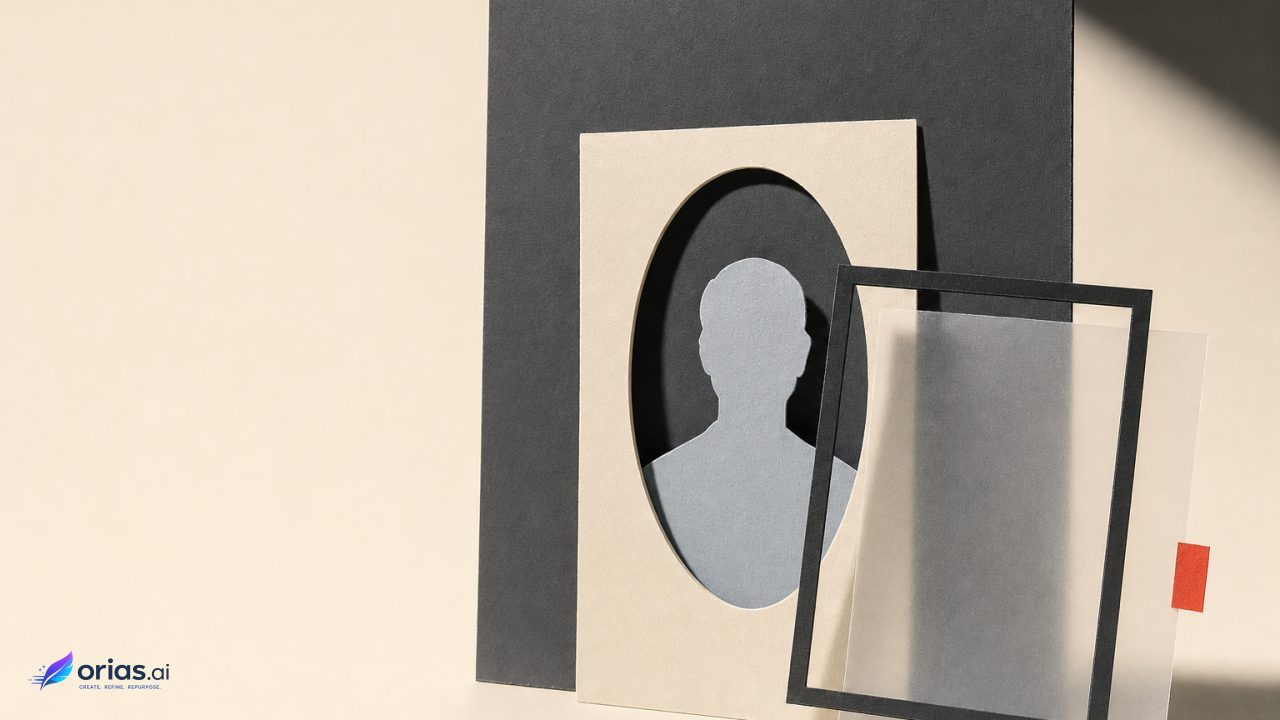
An AI video background remover is a video-matting system: it estimates an alpha matte, a per-pixel map of foreground opacity that separates a subject from its original scene. Unlike a binary cutout, the matte can preserve partial transparency at boundaries such as hair, translucent material, and soft motion blur.
The result can support a transparent export or place the subject over a solid colour, still image, or another video layer. Research on high-resolution video matting describes this alpha-based approach and its use in compositing.
In practice, removal is often a useful first pass for a presenter or portrait clip. Quality depends on accurate subject segmentation and boundary estimation, especially around hair, motion, ambiguous regions, and backgrounds that resemble the subject. Difficult footage may need manual matte refinement or a chroma-key workflow, so the matte should be checked at the delivery size, throughout the shot, and against the chosen replacement.
AI background removal creates an alpha matte, not a clean cutout
AI background removal produces an alpha matte rather than a binary cutout. A binary mask keeps or discards each pixel, while the matte assigns opacity across a range: fully opaque pixels represent the foreground, fully transparent pixels reveal the replacement layer, and partially transparent pixels form the transition at the boundary. That intermediate information helps preserve fine edge detail when the subject is composited over a new image, video, or transparent layer.
Generating the matte involves two related judgments: identifying the likely subject, often a person in creator-oriented tools, and estimating where the foreground ends. The latter includes ambiguous pixels where foreground and background mix, particularly around hair, hands, clothing folds, motion, or visually similar backgrounds.
The matte should therefore be treated as an intermediate compositing asset, even when the editor presents removal as a one-click effect. A still frame or an unchanged background may conceal missing detail, a halo, or an unstable edge; those problems can become visible when the subject is placed over a different layer. Difficult footage may require further matte refinement or another keying workflow.
How temporal matting keeps a moving subject from flickering
A moving subject exposes weaknesses that a still image can hide. When each frame is segmented independently, shifts in pose, blur, exposure, or texture can make the estimated boundary jump; hair may flicker, the outline around the shoulders may seem to breathe, and pieces of the background may appear at the edge.
Temporal guidance changes the unit of analysis from the isolated frame to the sequence. In the WACV paper, recurrent architectures carry useful information forward from earlier frames, reducing flicker and preserving more coherent edges during movement. The paper’s temporal design supports evaluating video background removal across motion rather than approving a single favourable frame.
That continuity still has limits. A model may remain consistently attached to the wrong boundary or drop a detail when the image becomes ambiguous, particularly around hair, during motion, or against a similar-coloured background. Review the difficult transitions—turns, gestures, entrances, exits, and crossings—by scrubbing through them.
A no-green-screen workflow: isolate, refine, then composite
No-green-screen removal starts with the footage that already exists. Trimap-free portrait matting research shows that automated portrait matting can work from a single image or video input without a manually drawn trimap, which makes it practical as a first pass in common creator workflows. MODNet’s trimap-free approach is an example of this direction. It does not mean that every shot needs no human review.
- Prepare the shot. Choose the intended subject and make sure the edit does not include unwanted people or objects that could confuse the isolation step. Work from the source clip where possible, before further effects complicate the edge.
- Generate the initial matte. Apply the background-removal or subject-isolation tool. In practical editors, this separates the detected subject from the original background.
- Inspect and refine. Review the entire usable range of the shot. Use available matte controls or brushes where the automatic boundary fails, especially around fine detail.
- Place the replacement. Put a solid colour, image, or video behind the isolated subject. Match the replacement to the framing and movement of the original shot rather than treating it as a flat afterthought.
- Perform a composite review. Check the new background at normal viewing size and at edge-inspection size. Look for unwanted original-background remnants, cut-off foreground, halos, and temporal instability.
Consider a product marketer recording a seated presenter in an office, then needing a branded motion graphic behind them for a launch clip. The automatic pass isolates the presenter; the editor checks hair and shoulder edges through head turns, adjusts any weak boundary with matte tools, and positions the motion graphic below the subject. The final review is not only about whether the office vanished. It tests whether the presenter still belongs in the new shot: a busy or high-contrast background can make a marginal edge much more visible.
This sequence reflects the controls available in production tools. CapCut describes adding solid-colour, image, or video backgrounds after automatic subject separation, while Adobe describes AI-powered foreground segmentation in After Effects’ Roto Brush with matte controls for refinement. CapCut’s background-remover documentation and Adobe’s Roto Brush documentation frame automation as a starting point with refinement available when the matte needs it.

Hair, motion, and similar colours are where the matte breaks down
Hair, fast motion, and backgrounds that resemble the subject in colour or texture are difficult cases because they leave less certain visual evidence. Individual strands and gaps can be partly transparent, motion can change the evidence from frame to frame, and visual similarity can weaken subject-background separation. Research on semantic guidance for human matting describes these challenges alongside the two requirements of high-quality matting: reliable semantic segmentation and precise boundary estimation.
Those requirements explain the visible failures: uncertain inference may leave background in the matte, remove foreground that should remain, or produce fluctuation over time. A replacement can make the problem easier to see—a light fringe around dark hair may disappear against a light wall but stand out on a dark graphic, while dark contamination can show against a pale one. Test against the planned background early. A neutral checker or solid colour is useful for diagnosis, not as the final delivery condition.
When to use AI matting, manual roto, or chroma key
AI matting, manual roto, and chroma key solve related compositing problems with different inputs and trade-offs. They are not mutually exclusive. A team may begin with automated isolation, use manual tools only on the weak portions of a shot, or choose a deliberately uniform screen at capture when a clean key is the better production decision.
| Approach | Best fit | Review priority |
|---|---|---|
| AI matting | Common portrait or presenter footage that needs a rapid no-screen first pass | Subject detection, fine edges, and stability across the shot |
| Manual roto and matte refinement | Shots where the automated matte has specific boundary errors that need intervention | Whether corrections hold through motion and preserve intended foreground detail |
| Chroma key | Footage intentionally captured against a uniform screen | The key quality and any remaining edge work |
Use AI matting when speed and existing footage are the governing constraints, not because the shot has no compositing risk. Escalate to manual refinement when the automated result is nearly usable but fails at a controllable boundary. Adobe’s Roto Brush workflow explicitly pairs AI-powered segmentation with matte refinement controls, which is a useful model for this handoff: automation establishes the likely foreground, while the editor judges and corrects the usable edge. Adobe documents those segmentation and refinement stages.
Choose chroma key when the production can control capture and the subject is filmed against a uniform screen. It is not obsolete because AI can isolate a person from an ordinary room. It remains a distinct method whose value comes from the planned background and the resulting separation task. Practical editing tools continue to present chroma key alongside AI removal and manual brushes, rather than as a replacement for them. CapCut’s workflow guidance reflects that coexistence.
Frequently Asked Questions
Is a green screen required for AI video background removal?
No. AI matting can estimate a foreground alpha matte from ordinary video, including trimap-free portrait workflows. A green screen is a separate, capture-based option that can still be appropriate for footage made against a uniform background.
Can AI background removal create transparent video?
For compositing, the matte can make the original background transparent. Whether that transparency survives depends on the chosen export and downstream workflow, so confirm the result in the destination application instead of assuming every video export preserves the alpha information.
Why do edges flicker or lose hair detail?
Fine boundaries remain ambiguous around hair, blur, motion, and backgrounds that resemble the subject. Although video systems use temporal information to improve consistency, a difficult edge can still be misclassified or vary during the shot.
When does a replacement background look convincing?
It begins with a stable matte, then depends on testing the actual replacement behind the subject. Review the whole shot for halos, missing details, and remnants of the original background; high-contrast or moving replacements often reveal errors that a neutral preview hides.
Does AI background removal replace chroma key?
Not categorically. AI removal is useful for existing footage and fast subject isolation, while chroma key remains useful when footage was intentionally shot against a uniform screen. Manual matte tools sit between them when an automated result needs targeted correction.