By Orias AI
AI Image Vectorizer: How to Convert PNG and JPG to SVG for Web and Print
PNG and JPG artwork can be traced into SVG paths, but source quality, settings, cleanup, and export checks determine whether the result is usable.
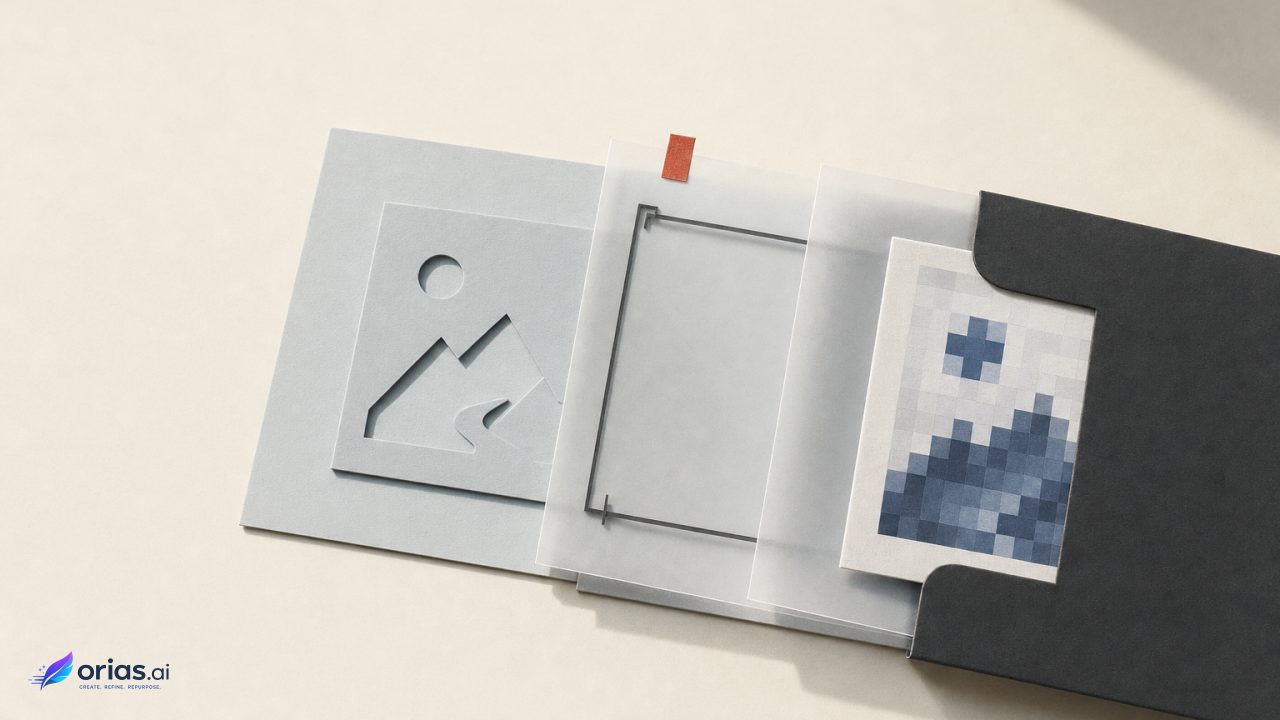
An AI image vectorizer traces the visible pixel boundaries of a PNG or JPG into SVG shapes and paths. Because it works from detected raster information, the result is an approximation—not the original logo, illustration, or design file.
PNG and JPG are pixel-based raster formats, whereas SVG uses scalable shapes and paths. A well-made SVG can grow without raster pixelation, making it useful for responsive web graphics and logos; MDN’s overview of vector graphics covers the distinction. That benefit does not by itself make a trace faithful, clean, or ready for production handoff, so cleanup may still be needed.
PNG and JPG Become SVG Paths, Not Recovered Original Artwork
SVG is an XML-based language for two-dimensional graphics. It can contain vector shapes, text, styling, transformations, clipping, masking, filters, animation, scripting, and embedded images. In a typical traced illustration, however, the important editable geometry is held in path data rather than in a recovered layer structure or original drawing logic. The SVG 2 specification defines this broader format scope.
Paths can express straight lines, cubic and quadratic Bézier curves, arcs, and closed shapes. A vectorizer identifies apparent edges between pixels, then represents those boundaries with path commands. A dark letterform on a white background may become a closed filled path; a multicolour icon may become many overlapping filled paths; an outline trace may produce strokes or contours. The available commands are specified by the W3C SVG paths specification.
This is why a small, compressed JPG can create a surprisingly awkward SVG. Compression artifacts, antialiased edges, shadows, and noise are all pixels for the trace to interpret. The result may look acceptable at first glance while containing too many points, tiny stray shapes, or uneven curves that make later editing difficult.
Choose Source Images That a Vectorizer Can Simplify
Start with the question the vectorizer can answer: can this image be simplified into deliberate areas and edges without losing the visual idea? Flat logos, icons, high-contrast line art, simple badges, and limited-palette illustrations are usually better candidates than photographs or artwork dependent on fine tonal changes. A clean source gives the operator clearer choices about what to keep and what to discard.
The source need not be perfect, but it should be prepared for the intended trace. Crop away irrelevant material, use the largest clean version available, and decide whether the background belongs in the final artwork. Adobe’s tracing controls include colour count, threshold, simplification, and background handling specifically because photographs, sketches, logos, and line art do not respond to one universal setting. Adobe’s Image Trace panel documentation also notes the trade-off: settings can introduce unwanted complexity or remove important detail.
- Strong candidates: a one-colour mark, a simple mascot with distinct colour regions, or black ink line art on a clean background.
- Proceed carefully: scans with paper texture, gradients, soft shadows, halftones, tiny type, or JPEG blocking.
- Usually the wrong job: a photograph that needs to remain photographic. A vector trace can be stylised, but it is not a lossless route to editable photographic detail.
For branded work, compare the trace against an approved asset before investing in cleanup. If the team has access to the original vector logo, use that rather than tracing a web download. Tracing is most useful when the raster image is the only available reference or when the goal is a deliberately simplified interpretation.
Trace Settings Control Fidelity and Editable Complexity
Tracing settings define a trade-off rather than a quality dial that only moves upward. More colours or finer edge detail can preserve visible features, but may also create a dense collection of small paths. Aggressive simplification makes a file easier to edit, yet can blunt corners, close counters in letterforms, or omit narrow lines. Choose the setting that supports the final size, medium, and editing requirement.
Illustrator’s Image Trace provides presets and adjustable options in colour, grayscale, black-and-white, and outline modes. Once expanded, its result becomes editable paths for manual cleanup. Adobe describes Image Trace as raster-to-vector conversion, but its own documentation is explicit that the trace is an approximation rather than a restoration of original artwork.
A practical one-colour logo sequence is straightforward:
- Place the cleanest available raster reference and trace in black-and-white or a limited-colour mode.
- Adjust the threshold until the intended strokes and enclosed spaces read correctly; do not chase every antialiased pixel around an edge.
- Use simplification cautiously, then expand the trace into paths.
- Inspect letter counters, joins, corners, and isolated specks at a close zoom. Delete debris, smooth visibly bad curves, and rebuild a critical shape manually if cleanup is taking longer than redrawing it.
- Test the mark at its smallest real use size as well as at a large zoom. A clean silhouette at 24 pixels can be more valuable than microscopic fidelity.
For line art, outline mode may be appropriate when the desired deliverable is an outlined drawing rather than filled colour regions. For a simple flat illustration, colour mode can preserve distinct areas. Treat the preview as an editorial proof: it reveals what the software proposes, while the designer decides whether that proposal matches the visual system.
Where AI-Assisted Vectorization Fits After Image Trace
AI-assisted vectorization can be useful when a team wants a new vector interpretation, a refinement, or a stylised direction from a raster reference. It should not be confused with a promise of faithful conversion. If an old bitmap logo must match an established identity exactly, conventional tracing followed by deliberate path editing remains the more controllable workflow.
Adobe Illustrator’s Concept to Vector can take a raster image or an unexpanded Image Trace object as input and generate vector outlines, coloured artwork, or stylised vector illustrations from prompts. Adobe’s Concept to Vector documentation positions those as distinct output forms, which is useful when choosing between a literal contour, finished colour artwork, and a more interpretive result.
In a working team, give that stage a clear brief and review gate. Specify the reference image, required palette or style direction, intended output size, and elements that must remain recognisable. Then assess the returned vector as artwork: check shape consistency, unwanted additions or omissions, editability, and fit with the brand system. The fact that an output is vector does not establish that it is the right illustration.

Inspect the SVG Before Calling It Editable or Production-Ready
“SVG” names a file format, not a guarantee that every visible object is editable vector geometry. An SVG can contain embedded images or rasterized content, and Adobe’s Illustrator reference notes that some effects and mesh objects may be rasterized during export. Inspect the exported file instead of judging its construction by the extension.
Open the delivered SVG in an editor and examine its structure. Expand tracing results where needed, select individual shapes, and check that elements intended for recolouring or reshaping are paths rather than a placed raster image. The same review can reveal accidental background rectangles, tiny isolated shapes, unnecessarily dense points, and effects that will not survive the destination workflow as intended.
Apply that review especially to SVGs from AI tools, collaborators, stock sources, or user uploads. SVG supports scripting and external resources, but browsers may disable JavaScript and external resources when the file is used as an image, as MDN’s SVG-as-an-image guidance explains. Inspect or sanitize externally sourced files before deployment rather than assuming browser restrictions make them harmless or suitable unchanged.
Use SVG for Web Graphics and PDF/PDF-X for Print Handoff
SVG is a natural delivery format for logos, icons, diagrams, and other responsive or interactive web graphics: its path-based geometry can scale cleanly, and it supports web-oriented capabilities beyond simple shapes. It is not, however, the default final handoff for every printer.
For print production, confirm the vendor’s requested format and preset. Adobe describes PDF and PDF/X as reliable formats for print publishing and production exchange, including colour, fonts, trapping, proofing, and print workflow requirements, while positioning SVG primarily for web and interactive graphics. Adobe’s PDF guidance supports using the production format the receiving workflow expects.
The practical split is simple: preserve an editable vector master, export SVG for the web use case, and create the required PDF or PDF/X package for print handoff. Before release, check the actual deliverable—not merely the working file—for retained vectors, unwanted rasterization, correct visible artwork, and the requirements supplied by the printer or publisher.
Frequently Asked Questions
Can every PNG or JPG be vectorized well?
No. Simple, high-contrast graphics with limited colours are more likely to produce manageable paths. Photos, gradients, textures, tiny type, and compression artifacts can yield large or visually compromised traces.
Does an SVG file guarantee true vector artwork?
No. SVG can contain embedded raster images, and some export features may be rasterized. Open the file and inspect the objects if editability is a delivery requirement.
When is AI preferable to standard image tracing?
Use AI-assisted generation when a new or stylised vector interpretation is useful. Use controlled tracing and manual cleanup when the job demands close adherence to a known reference.
Is an SVG ready for print?
It may contain scalable artwork, but it is not automatically the preferred print handoff. Ask the printer for its required format; PDF or PDF/X is often the more appropriate production exchange format.
Can I use an externally generated SVG unchanged?
Review it first. Check its visual structure and whether it contains embedded raster material, then inspect or sanitize SVGs obtained from AI systems, third parties, or uploads before publishing them.